
Installation
Download the Dynamic Gesture unitypackage from BOOTH, then follow this order:
- Import the downloaded package into your Unity project.
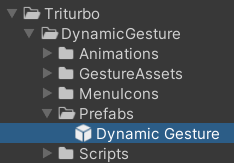
- Locate the prefab at
Assets/Triturbo/DynamicGesture/Prefabs/Dynamic Gesture. - Drag the prefab into your avatar hierarchy.
Add a gesture asset
Use either of these approaches:
- Assign an existing asset by dragging it into the gesture list on the
Dynamic Gesturecomponent. - Create a new asset with the
+button in the inspector, then configure it from the Dynamic Gesture Asset reference.
The asset is the important unit here. It defines gesture naming, menu icon, animation behavior, override targets, and tracking behavior.
FX animation
Dynamic Gesture can trigger FX animations for facial expression changes or other avatar-side effects.
- Enable
Enable FX AnimationinSettings/Animation Settings. - Assign an animation clip to each gesture slot that should drive an FX effect.
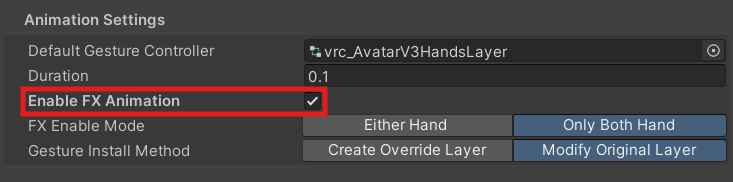
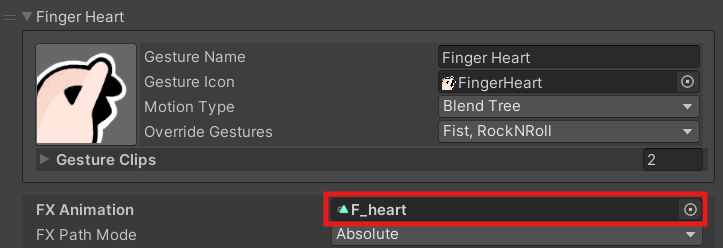
When an assigned gesture becomes active, the matching animation clip plays automatically.
FX path mode
Choose the path mode based on where the animation clip was authored:
| Mode | Behavior |
|---|---|
Absolute | The animation root is resolved from the avatar animator root. |
Relative | The animation root is resolved from the Dynamic Gesture component object. |
If a clip was authored against a child object under the Dynamic Gesture object, Relative usually keeps the path mapping predictable.
Gesture behavior checklist
Before you ship a gesture set, verify these points:
- The gesture name and icon are clear in the VRChat expression menu.
- The selected motion type matches the intended behavior.
- Override targets only replace the default VRChat gestures you actually want to intercept.
- Tracking behavior is deliberate when fingers should either keep following input or fully hand off to animation.
The detailed behavior for MotionType, TrackingType, and override settings is documented in the Dynamic Gesture Asset reference.